

Learn how to use Google Search Console for SEO with this simple step-by-step guide. Discover how to track rankings, fix SEO issues, and boost your organic traffic.
Introduction: Why Google Search Console Matters
If you have a website, you probably wonder: How do I know if people can find me on Google? Or why is my site not ranking?
That’s where Google Search Console (GSC) comes in.
Google Search Console is a free tool from Google that helps you check how your website appears in search results, find problems, and improve your SEO. You don’t need to be a technical expert. Even beginners can learn step by step how to use it.
In this guide, I’ll show you exactly how to use Google Search Console for SEO. You’ll learn how to set it up, how to track your keywords, how to do keyword research, and how to fix common issues.
We’ll keep everything in simple terms so that even if this is your very first time using GSC, you’ll be able to follow along.
What is Google Search Console (GSC)?
In simple words, Google Search Console is like a health check for your website in Google search.
- It shows you if your pages are showing up in search.
- It tells you what search queries people are typing when your site appears.
- It warns you if your site has problems, like broken links or slow loading.
What is GSC in SEO?
In SEO (Search Engine Optimization), GSC is used to measure your visibility in Google. You can see how often your site shows up (impressions), how often people click (clicks), and where you rank (average position).
Some people also call it:
- “Google Console”
- “GSC SEO”
- “Google Search Console guide”
Think of it as your SEO control room.
Why Beginners Should Use Google Search Console
If you’re just starting out, Google Search Console can feel overwhelming. But here’s why every beginner should use it:
- Check if your site is on Google – You’ll know if your pages are indexed and visible.
- See which keywords bring traffic – Even if people aren’t clicking, you’ll know what they search.
- Find and fix errors – Like mobile usability issues or missing pages.
- Measure your growth – You can track progress as your SEO improves.
This is why you’ll often see beginners asking in forums or even in ChatGPT: “How to use Google Search Console for beginners?” or “How do I learn Google Search Console step by step?”
The good news is: once you practice a little, it gets easier.
How to Set Up Google Search Console (Step-by-Step Tutorial)
Setting up GSC takes only a few minutes.
- Go to the website: Visit Google Search Console.
- Add your property: Choose “Domain” (covers your whole site) or “URL prefix” (just one URL).
- Verify ownership: You can do this by uploading a file, updating your DNS records, or using Google Analytics.
- Submit your sitemap: This helps Google understand your site’s structure.
- Explore the dashboard: You’ll see reports for Performance, Coverage, and more.
This step is often called the Google Search Console tutorial part, since it’s the first thing beginners must do.
Key Features of Google Search Console for SEO
Once you’re inside, these are the most useful reports.
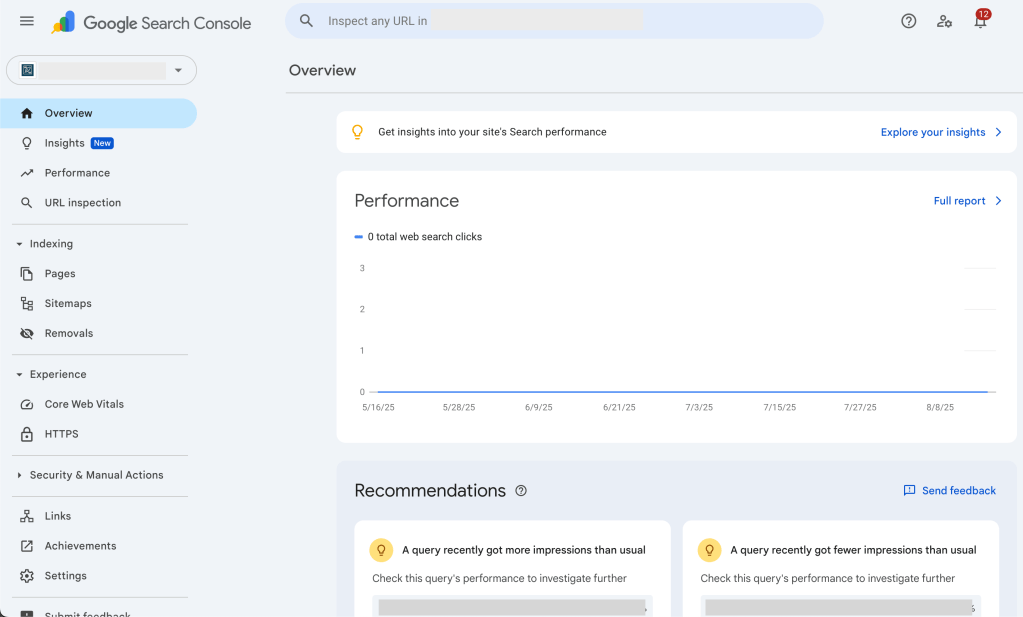
Performance Report
This shows:
- Impressions: how many times your site appeared in search.
- Clicks: how many times someone clicked your site.
- CTR: click-through rate (clicks ÷ impressions).
- Position: average ranking.
Example: One of my queries “gsc seo” had 1,589 impressions but 0 clicks. That tells me people are seeing my result, but not clicking.
Studies like the Advanced Web Ranking CTR study show that CTR changes a lot by position. If you rank on page 8, don’t expect clicks.
URL Inspection Tool
Enter a URL to see if it’s indexed. If not, you can ask Google to index it.
Coverage Report
This shows errors, warnings, and valid pages. If Google can’t crawl your site, you won’t rank.
Experience Reports
Google checks Core Web Vitals (loading speed, interactivity, visual stability). If your site is slow or hard to use on mobile, you’ll lose SEO points.
How to Use Google Search Console to Improve SEO
Now let’s answer the big question: How do I use Google Search Console for SEO?
Here’s how beginners can use it step by step:
- Look at your top queries – For example, my report shows “how to use Google Search Console for SEO” has 404 impressions but no clicks. That means my content isn’t matching search intent well enough.
- Improve your title and meta description – Rewrite them to be clearer and more engaging. Example: “How to Use Google Search Console for SEO (Beginner’s Tutorial).”
- Check your position – If you’re ranking 70+, you need to add more content depth or get backlinks.
- Fix errors – Use the Coverage and Experience reports to fix broken pages or slow loading.
- Add internal links – Link from other blog posts using anchor text like “Google Search Console beginner’s guide.”
This process helps you move from impressions with 0 clicks to actual traffic.
How to Use Google Search Console for Keyword Research
Did you know you can also use GSC as a free keyword research tool?
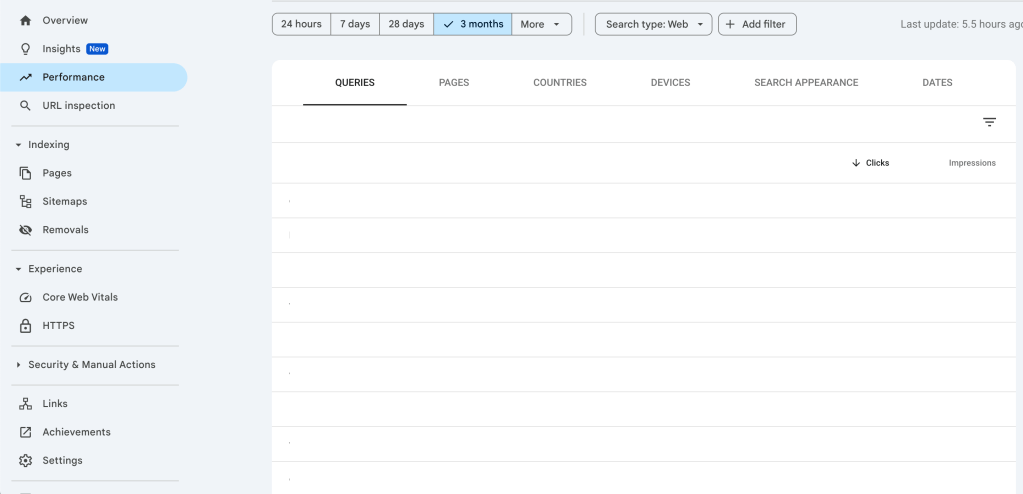
Here’s how:
- Go to Performance → Queries.
- Sort by Impressions.
- Look for queries where you have impressions but no clicks.
Example:
- “google search console tutorial” → 187 impressions, 0 clicks.
- “how to use google search console to improve seo” → 89 impressions, 0 clicks.
What should you do?
- Add these phrases as headings (H2/H3) in your article.
- Write short sections answering these exact searches.
- Naturally use them in your content without stuffing.
This is how you turn hidden opportunities into new traffic.
Beginner-Friendly Walkthrough (Step by Step)
If you’re just getting started, here’s a very simple workflow:
- Verify your site – make sure Google recognizes it.
- Submit your sitemap – so Google crawls it faster.
- Check Performance weekly – see which queries show up.
- Fix issues monthly – coverage, mobile, or speed problems.
- Use queries as content ideas – write blog posts around what people are searching.
This is basically Google Search Console for beginners.
Pro Tips for Going Beyond the Basics
Once you’re comfortable, try these:
- Connect GSC with Google Analytics for deeper insights.
- Use Looker Studio to build visual dashboards.
- Export queries and combine with tools like Ahrefs or Semrush.
These are ways to go beyond a beginner and “learn Google Search Console” at a more advanced level.
Conclusion: Why GSC is Your Free SEO Coach
Google Search Console is like your free SEO coach.
It doesn’t just show you problems — it shows you opportunities. You can see what people are searching, fix issues, and keep improving step by step.
For beginners, this guide should give you everything you need to get started. Over time, you’ll get better at spotting patterns, writing optimized content, and growing your traffic.
Remember: SEO takes patience, but with GSC you have the exact data you need to improve.
So go ahead — log in, set up your site, and start learning from your very own Google Search Console beginner’s guide.
If you want to learn more from WordByWord Solutions, you can Contact Us now or you can inquire about our services.
Frequently Asked Questions
What is GSC in SEO?
It’s short for Google Search Console, a free tool from Google to measure your site’s search performance.
What is GSC in SEO?
It’s short for Google Search Console, a free tool from Google to measure your site’s search performance.
Is Google Search Console free?
Yes, it’s 100% free.
How do beginners use Google Search Console?
Start with the Performance report to see what people search, then fix errors in the Coverage report.
How do I use Google Search Console step by step?
Verify your site, submit a sitemap, check performance, and fix issues.
Can I use Google Search Console for keyword research?
Yes — it shows you which queries people search, even if you didn’t know them before.
Google Search Console vs Google Analytics — what’s the difference?
Analytics shows what people do on your site. GSC shows what happens before they click (search performance).
How long does it take for changes in GSC to show up?
Usually a few days to a few weeks.
Can Word by Word Solutions help me with SEO and Google Search Console?
Yes. At Word by Word Solutions, we help businesses and bloggers set up, understand, and optimize Google Search Console. We also offer SEO services, keyword research, and content writing to improve your traffic step by step.

 WordbyWord Solutions
Leave a comment